Structures
A structure can be thought of as a branch of the hierarchy in the model. Structures have icons that look like manila folders, and when clicked on they reveal the structures or objects contained within them. To roll them up simply click on the structure again. As in the example below, structures with a "-" have been clicked on and opened while those with a "+" are closed or 'rolled up'.

You can add an structure by clicking on the structure you wish to add it to, and then using the Insert New Structure button.

You can edit an existing structure using the Edit Structure button. You can also double click on a structure to edit it.

When editing an structure you can add and remove tags after pressing the “add(+)” or "delete(-)" buttons respectively.
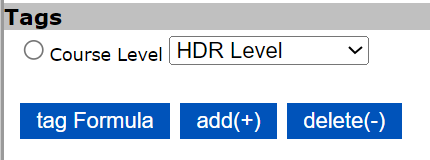
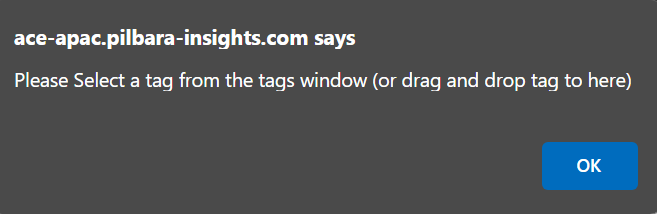
To add a tag, find the required tag in the tags window and press the “add (+)” button. If the "add(+)" button is clicked and the tags window is not already open, a prompt will appear and clicking 'Ok' will make the tags window appear.
There are three checkboxes available in the edit structure window.
Hide : will hide the structure from wizard logins.
Highlight : will highlight the structure in bold.
Disabled: keeps the structure but it cannot be used for assignments or calculations.
While editing a structure it can be moved to another structure by browsing to the new structure in the opposing window and then pressing the “Move to” button. You can also click and drag one structure to another.

A structure can be deleted by clicking on the structure and then clicking on the delete structure button.
